APK hazırla
What is an APK?
An APK is the file an Android phone installs. Inside it sit the screen, the pictures, the words, and the code the app needs to run. A store usually opens this file for you. If you save and open it yourself, the phone may ask for an extra permission.
An APK is not a programming language. It is the package of a finished app. The inside can be Kotlin, Java, Flutter, or only a web page. From the outside they all end in .apk.
An APK from a page you do not know may not be the real copy of the app. A file you build from your own site or your own zip is different. The letters apk in the name do not show that the file is safe.
How is an APK made?
First you write what the app will do. Then you build the screen. Then that screen becomes files. At the end a program packs those files into one APK. The phone installs that one file.
The short path is a web page. A zip that contains index.html is given to Nibras Studio, and Studio turns it into an APK. Android Studio, an account, and a coding course are not required for this path. The page opens in an app window on the phone.
The longer path is a program that runs on the phone itself. Then folders, a manifest, and a signing step appear. The APK is still one file at the end, but more tools are needed to reach it.
What do you need?
Not every kind asks for the same tool. If you turn a site into an app, a browser, a text editor, and a zip are enough. The phone itself is the check. Nibras Studio does the build.
A native app in Kotlin or Java needs Android Studio, a JDK, and the Android SDK. Gradle packs the file. Capacitor also needs Node and npm, because the page first lives in a web folder and then moves into the android folder. Flutter needs its own Flutter SDK.
- Web APK: an editor, a browser, a zip, Nibras Studio
- Native: Android Studio, JDK, Android SDK, Gradle
- Capacitor: Node, npm, Android SDK, the android folder
- Flutter: the Flutter SDK, the android folder
The building stages
Skipping a stage gives an empty app at the end. Finish one screen, then add the second. Each stage has its own file.
- Write the job in one sentence: what the app keeps or what it shows.
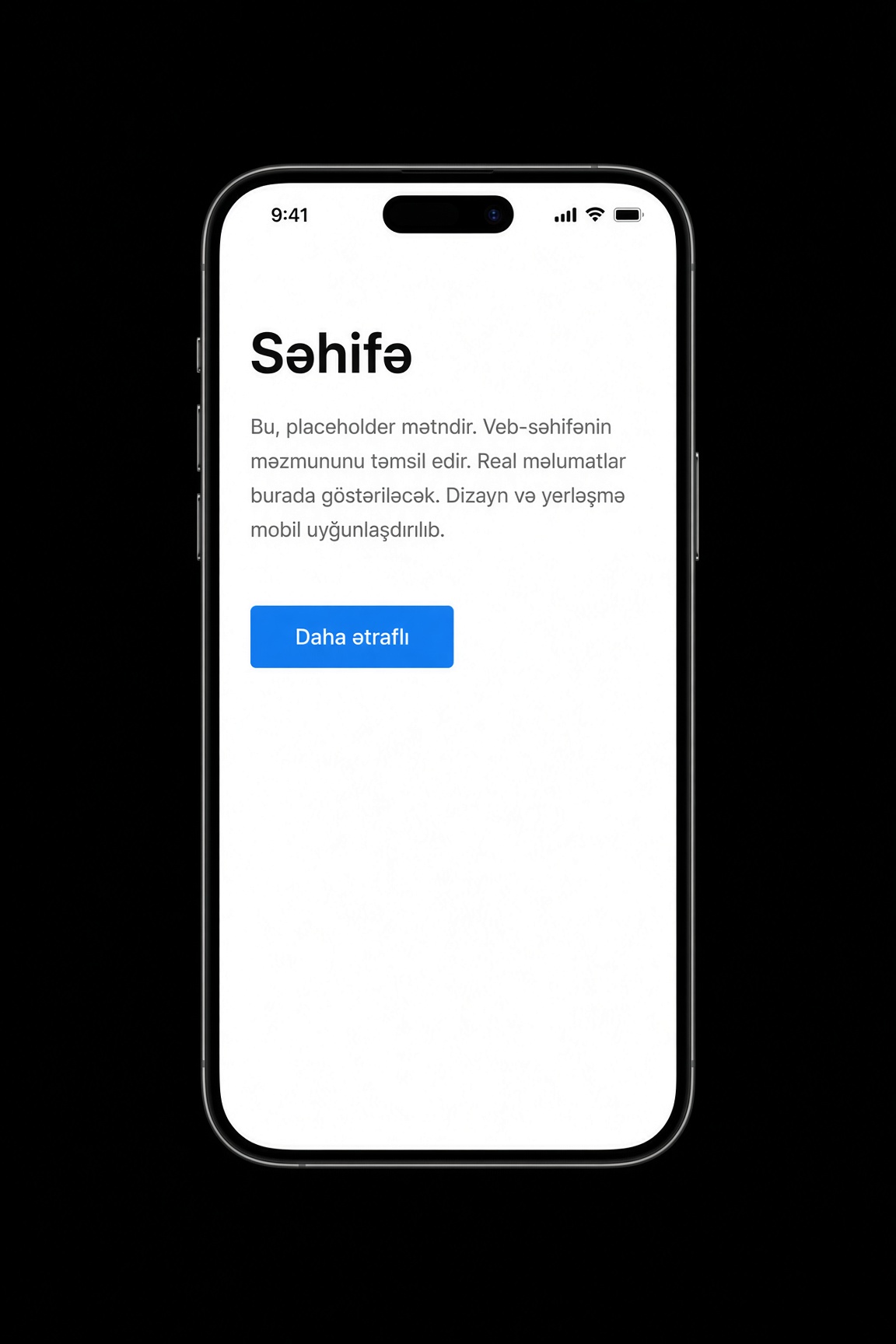
- See the screen on paper or on the black sample on this page. A title, a line, and a button are enough.
- Put the files in that kind's folder. For the web, index.html has to stand at the root.
- Open it on your own computer. Check a web page in the browser, and a native app in an emulator or on a phone.
- Build the APK. If it is a web zip, give it to Studio. If it is native, Gradle calls assemble.
- Install it on the phone and press the button. Fix the line that failed, then build again.
Kinds of APK
Web APK
This puts a site into a phone window. The inside is HTML, CSS, and JavaScript. Python that runs on a server does not open here by itself. index.html must be at the root of the zip. The css and js folders stand beside it. A picture falls into img. Nibras Studio takes this zip or the site address, you choose the name, the icon, and the package name, and the APK is built.
qeyd/
  index.html
  css/app.css
  js/app.js
  img/icon.png
The ready sample has this shape. Download the zip below, open index.html if you want to change a line, then give it to Studio.
Native APK
It is written in Kotlin or Java. The screen is the xml file in res/layout. The button's work is in the java or kotlin file. The icon is in the mipmap folders. AndroidManifest.xml says the app name, the package, and the opening screen. Android Studio opens these folders itself. The build goes through Gradle. This kind is chosen for the camera, a sensor, and deep work on the phone. It is heavy for a small notes page.
app/src/main/
  AndroidManifest.xml
  java/com/example/qeyd/MainActivity.kt
  res/layout/activity_main.xml
  res/mipmap-hdpi/ic_launcher.png
Remember the line app/src/main. The manifest, the screen, and the icon sit under that line.
Capacitor APK
The page stays in the www folder. capacitor.config.json says how the site enters the app. The android folder is the native shell. Finish the page in www first, then Capacitor refreshes the android folder, and the APK is built from that android project. Node and the Android SDK are both needed. This is one step past a web APK: you can touch the phone through your own plugin.
www/
  index.html
capacitor.config.json
android/app/src/main/
  AndroidManifest.xml
www is the site. android is the shell. Changing one and forgetting the other puts the old screen on the phone.
Flutter APK
The screen is written in the Dart language inside lib/main.dart. pubspec.yaml is the list of packages. The android folder is still the shell, but HTML does not hold the page. Flutter draws the screen itself. The project does not open until the SDK is installed. The folders look few, but the tool is learned on its own.
lib/main.dart
pubspec.yaml
android/app/src/main/
  AndroidManifest.xml
lib is the screen itself. android is only the phone's shell. The APK comes out with flutter build apk.
What is inside an APK?
An APK is an archive with another name. The name ends in .apk, but the inside is folders and files. The phone opens that one file, checks the signature, then runs the program inside. Changing the inside and packing it again does not make the app yours. The signature breaks and the phone refuses the file.
Two APKs can look the same from the outside. One holds a page. The other holds many screens, pictures, and libraries. The size grows from pictures and added tools, not from the length of a sentence.
- AndroidManifest.xml says the app name, the package, the opening screen, and the permissions it may ask for.
- classes.dex is the program the phone runs. Kotlin and Java become this when they are built. A web APK has less of its own logic. The page stands separately.
- The res folder holds pictures, words, and screen layout.
- resources.arsc is the table that ties a name to a picture and a line of text.
- META-INF is the signature. If a file inside changes and the signature is not made again, install stops.
- In a web APK the site itself stands in assets or a folder like it. The window opens those files.
What are permissions for?
The camera, the contacts, and the location do not open just because an APK is on the phone. The manifest only lists what the app may ask. The person usually agrees the first time that screen opens. Without a yes, that job does not run. The rest of the app can stay.
Ask only for what the screen uses. A notes app does not need the microphone. A map needs location. A screen that talks to a server needs the internet. An extra permission frightens the person and raises a question in a store review.
A web APK that opens your site needs the internet. The camera does not arrive by itself. The shell and the page both have to ask, and the person has to agree. Keep the permission on the camera screen, not on the first open.
Debug, release, and AAB
A debug APK is for a test. The APK that Nibras Studio builds is debug-signed. You can install it on your own phone and try the button. A store usually will not take this file as the final release. You can hand it to a friend for a test. The phone may warn about an unknown source.
A release APK is signed with your own key. That key shows that the next update came from you. Lose the key and you cannot put a new file on top of the same app. A new package name counts as another app and stands beside the old one.
versionCode is a whole number. Each new file must raise it. versionName is the name a person sees, such as 1.2. If the number does not rise, the phone does not replace the old file.
An AAB is the bundle a store often wants. An APK is the file the phone installs. The store can split an AAB into smaller APKs for each kind of phone. If you install it yourself, you need an APK in your hand.
What is an advanced APK?
A simple APK is one screen. It keeps a line on the phone. It does not know who the person is. Close it and open it, and the line is still there. That is enough. A note, a counter, and a one-button page are this kind. You can build one in a day.
An advanced APK has many screens. There is an account. The data has to appear on another phone. A list comes from the internet. A picture is sent. A notification can arrive while the app is closed. Two people see the same change. This is no longer a page squeezed into a file. The phone, a server, and stored data work together.
An advanced app does not start big on the first day. The simple screen is finished first. Then a second screen arrives. Then saving moves to a server. Then login. Writing all of it on day one gives an empty shell: buttons, and no job.
On the web path the hard part is often the site itself. Login, the list, and the server live on the site. The APK is only the window. Nibras Studio can turn that site into an app. Choose native or Flutter when the camera, the files, or background work must go deeper than a page. If a window is enough, a second program wastes time.
How do you build an advanced APK?
A large app does not start with one sentence. The words "a program that does everything" finish no screen. Split the job into small sentences. For example: a person signs in, sees their notes, adds one, and that note appears on a second phone. Those are four jobs. Each one has a screen and a file.
- Separate the screens. A list, the inside of one note, a writing form, and login. Give each screen one job.
- Choose where the data sits. A line that only this phone needs can stay on the phone. If another phone must see it, you need a server.
- The phone sends a short request. The server returns data. The database does not sit inside the APK.
- Do not write a password or a secret key into the code. A person who opens the APK can read it. The server checks. The phone keeps only a permit token.
- Login is its own screen. The server gives a token. The token is not the password itself.
- Put the permission on the screen that does the job. The camera is asked on the camera screen, not on the first open.
- Decide what stays open when the internet drops. A copy of the last list can show. A new line can wait and leave later. If you do not plan this, the screen simply stops.
- Test on a narrow phone. A button that fits your screen can fall off another phone.
- Raise versionCode. Sign with the same key as the old release. The package name must stay the same.
- The store page is separate from the APK. The name, the pictures, the short text, and the privacy address do not end inside the file.
Gradle folders
In a simple app one screen stands in activity_main. In an advanced project each screen has its own file, and Gradle packs them into one APK. At the root, settings.gradle says which module exists, usually app. build.gradle is the rule of the build. gradle/wrapper and gradlew keep Gradle itself with the project, so another computer uses the same version. gradle.properties holds small settings.
The real code sits in the app folder. app/build.gradle writes the libraries and the SDK version. Under src/main/java the package folders stand: the list, the inside of one note, and login are separate files. res/layout is the screen arrangement, res/mipmap is the icon, and assets is a page or a font you put inside. The app/build and .gradle folders appear by themselves during the build. You do not write them by hand and you do not put them in Git.
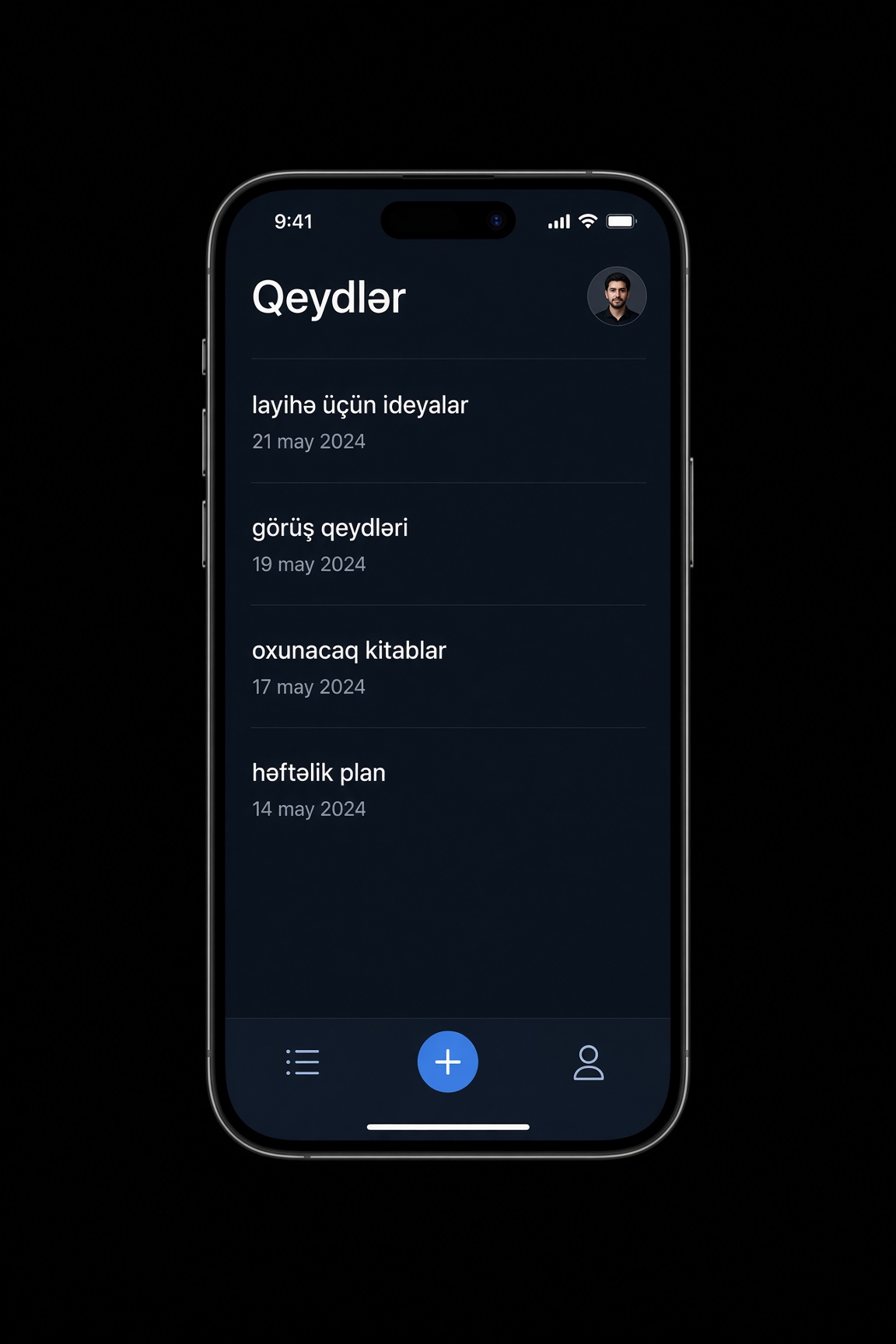
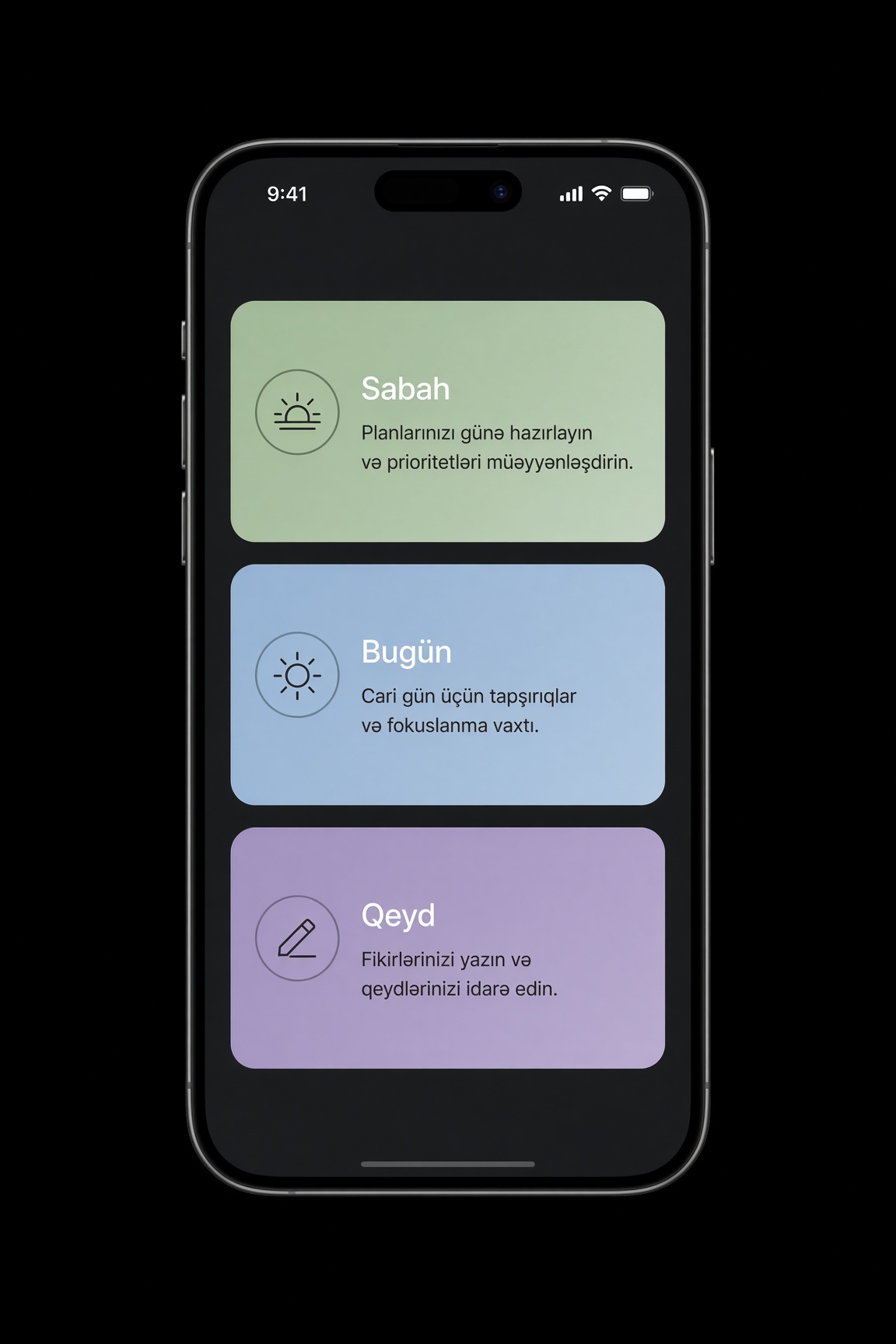
The server folder may not sit inside the phone project. It runs at another address. The APK only sends it a request. The black screen below is the app these folders produce: a list, a place for a picture, and a bottom menu.
Qeyd/
  settings.gradle
  build.gradle
  gradle.properties
  gradlew
  gradle/wrapper/
  app/
    build.gradle
    src/main/
      AndroidManifest.xml
      java/az/studio/qeyd/
        MainActivity.kt
        SiyahiEkran.kt
        QeydEkran.kt
        GirisEkran.kt
      res/layout/
      res/values/
      res/mipmap-hdpi/
      assets/
  server/          (ayrı ünvanda)
See one screen on a phone first. Then add the second. Connect the server at the end, and only if a second phone must see the same line. Start the other way and you keep a database with no button and an empty APK.
Updates and common questions
The phone replaces the old app only when three things match. The package name is the same. The signature comes from the same key. versionCode is higher. If one is missing, the new file either does not install, or it stands beside the old one as a second app.
Build your own app. Opening someone else's APK and putting your screen inside it does not make it yours. The signature breaks, the file does not install, and that program is not yours.
Are APK and AAB the same?
No. An APK is the file the phone opens. An AAB is the bundle you give a store. The store can turn it into an APK that fits the phone.
Does an APK open on an iPhone?
No. An iPhone uses another file and another rule. An APK built for Android does not install there.
Why is the file large?
One sentence on the screen does not grow the file. Pictures, fonts, and extra libraries do. Do not put a picture inside if you do not need it.
Does a web APK work offline?
A page you put inside the zip stays on the phone and can open. A page that loads from an address needs the internet. If a picture also comes from outside, it stays empty when the network drops.
Does a debug file go to a store?
No. It is for a test. A store wants a release signature, a rising version, and often an AAB.
How do you install an APK on a phone?
Installing an APK is not the same as putting it in a store. The file opens on the phone, the phone asks for permission, and then the app appears in the list. A store hides this step for you. With a file you built or downloaded from a site, you see the step yourself.
Not every file that ends in .apk installs. A half download, a document with the wrong name, and an update built with another signature stop the phone. Know where the file came from before you open it.
Before you install
Open only a file you built, or one that came from your own site or the author's own page. An APK walking around in a message, with a name that looks like a famous app and no page of its own, can be another program. The letters apk in the name do not mean it is safe.
The file from Nibras Studio is for a test. You can install it on your own phone and try the button. It is not a store release. The phone may say unknown app. That only means the file did not come from Play.
The install window shows the permissions the app may ask. Read the list. If a notes app asks for the camera, contacts, and location, close the file. In an app you built yourself, this list is what you wrote in the manifest.
Steps
On Android 8 and later the permission is not one global switch. Each app that opens the file needs its own permission. Allowing Chrome does not allow the Files app.
- Download the file fully. If the size is zero or much smaller than you expected, the download did not finish. Delete that file and take it again.
- Tap the .apk file from the Downloads folder or the files app. Tapping the finished download under the browser also works.
- If the phone says install from this source is blocked, go to the setting that opens. Turn on install unknown apps for that app, or the line that means the same. Come back and tap the file again.
- On old Android the path is different. Settings, security, unknown sources. After it installs, turn that line off again.
- Read the permission list. If you agree, tap Install. When it finishes, Open appears.
- If the same app is already on the phone and the signature matches, the button says Update. The package name must be the same, the signature the same, and versionCode higher.
- Open it and press the main button once. A white screen or an immediate close means the inside is not working, not that the install failed.
- You can turn the permission off after the job. In settings, switch off unknown install for that browser or files app. The app already installed stays.
The difference by brand
On plain Android the path is short. When you open the file, the phone takes you to the permission page itself. Pixel and some Nokia phones work this way.
On Samsung the path is Settings, Security and privacy, install unknown apps. On some models Auto Blocker or app protection cuts the file. Read the warning. If it is a file you built, allow only this time. Do not turn protection off forever.
On Xiaomi, Redmi, and Poco the permission is often under Settings, Privacy, special permissions, unknown apps. The Security app also scans the file and holds the install. When the scan ends you may have to tap Install again. If you send it from a computer by cable, install via USB must also be on in developer options.
On Huawei and Honor the path is Settings, Security, more settings, install from unknown sources. Some models have a mode that cuts an outside source. For a file that did not come from AppGallery, open that mode only for this install, then close it.
What to watch
This path does not replace a store review. If you hand a test file to a friend, they see the same steps. A release for everyone needs Play or AppGallery.
- Play Protect may show a warning. It does not know your test file. Read the text. Do not pass an unknown author's file with install anyway.
- A child account and a work profile can block the install. On such a phone a normal user permission is not enough.
- The app that opens the file and the app you allowed must be the same. If you open it from Telegram, the permission is for Telegram. If you then open it from Files, allow Files too.
- When the install ends, the app appears in the menu. If you do not see it, search the package name or the title on the screen. It sometimes falls inside a folder.
- You remove it from settings or by holding the icon. When it is removed, a line the app saved inside can go too.
An APK that will not install or will not open
The phone usually shows one short sentence. Several causes can sit under that sentence. Look at the file first, then at the old copy on the phone, and at the kind of phone last. Deleting the wrong place and installing again can also delete old data. Separate the cause first.
The package could not be parsed
"There was a problem parsing the package" or "the file is not a valid package" means a half file or another file. The browser saved a page under the name .apk. If the size is a few kilobytes, the inside is text, not a program.
Delete the file. Open the site or Studio again and wait until the download percent finishes. If the network dropped, a broken file stays. Renaming a zip to APK also gives this error. An APK is built separately. A zip is its raw material.
The signature does not match
"The package conflicts with an existing package" or "the signatures do not match" means an app with the same name is already on the phone, but this file was built with another key. The phone will not put another key's file on top of the old one.
There are two ways out. Delete the old app and install the new one. That takes the saved line inside. Or build the new file again with the old key. If you used a debug key once for a test and another key for the store, the phone does not treat them as the same app. Mixing the Nibras Studio debug file with your own release key gives this error.
The version is older
If it says the version cannot go down, or an error comes instead of the update button, the new file's versionCode is smaller than the copy on the phone, or it is the same. The phone does not go backward.
Raise versionCode in build.gradle, build again, and install that new file. Changing the file name without raising the number is not enough. Deleting the old one also installs, but the person's data goes. On your own test phone you can delete. On someone else's phone, raise the number.
The phone is not compatible
If it says this version is not compatible with your device, or the install button is dead, the app's minSdk is higher than the phone's Android. An old phone does not open a new target. The other way around, a very old target can be cut by a new Android itself.
The second cause is the processor. A split file built for only one kind of phone does not open on another. You need a full APK, or a file that matches that phone. You cannot drop an AAB straight onto a phone. It has to become an APK first. The store does that conversion itself. A hand install wants an APK.
Storage and a test file
"Not enough storage" is a plain cause. Delete pictures and an app you do not need, then tap again. If the file itself is large, the install needs more free space than the file's size, because the phone opens it and copies it.
"Test only" happens on some check builds from Android Studio. That file is not for a store or a normal install. Take a release build. The debug APK from Nibras Studio does not come with this sentence. You can install it the normal way. Android Studio's testOnly flag does stop an install from the files app.
Play Protect or a guard blocked it
The install button shows, then a harmful-app window or a guard window comes. Do not pass that warning on a file you do not know. If the text does not name your package on a test file you built, you mixed up the file.
If it is your file, allow only this install in that window. Do not turn the guard off for the whole phone. On Xiaomi and Samsung, tapping the button before the scan ends repeats the error. Wait until the scan finishes.
A work profile, family control, and some company phones cut an outside file completely. On such a device the setting may not be in your hands. Try it on your own phone.
It installed, but it will not open
The icon is there. You tap it and a white screen stays, or the app closes at once. This is no longer an install error. The page, the permission, or a library inside is not working.
- If a web app opens from an address, check the internet. If the address is wrong, the screen stays empty. A page put inside the zip should open without an address.
- On a Huawei phone and on a phone without Google services, Google sign-in, maps, or a Play notification can crash the open. Hide that part, or do not call a service the phone does not have.
- If a permission was denied, the button dies. Go to the app's permission in settings and turn on the camera or notifications.
- If broken old data is left, clear the app's storage. You can also delete it and install again with the same key. Installing with another key returns to the signature error.
- If it opens only for you and not for someone else, you are not looking at the difference in the emulator or in your own Android version. Try one old phone and one new phone.
Check in this order
When several causes sit together, change the file first, then the old copy, and the phone last.
- Look at the file size. If it is far too small, download it again.
- If the same app is on the phone, check the signature and versionCode. If they do not match, delete it, or raise the number and build with the same key.
- If the phone's Android is lower than the app asks, you need another phone or a lower minSdk.
- Look at free space. Then read the guard window. Do not turn the guard off forever.
- If it installed and will not open, separate the internet, the permission, and Google services. A white screen is often a wrong address.
Icon, name, and package name
An app has three names, and they do not do the same job. The short name under the icon is what a person sees. The name on the store page can be longer. The package name is not a word a person reads. The phone and the store recognize the app by it. Changing one does not change the others by itself.
The icon is separate too. The picture in the phone menu and the store's 512 picture can be the same drawing, but they are different files. Taking someone else's mark, or a famous app's name, is both a refusal and not your app.
The name under the icon
This name shows under the icon. If it is long, the phone cuts it. Two or three short words are enough. "My best notes app of all" does not fit the menu.
In a native project the name stands in the app_name line inside res/values/strings.xml. AndroidManifest.xml calls it with android:label="@string/app_name". You can write the word straight into the manifest, but then a separate line for each language gets harder. For another language the same app_name is repeated in res/values-tr and res/values-ru.
Nibras Studio asks for a name during the build. That name falls on the window title. The large title inside the site stays in index.html. If you want both to match, change the name in Studio and the title on the page.
The store name is a separate form. You can write a little longer there, but do not promise a job the inside does not do. The menu name can be "Note" and the store name "Note — a daily line". The package name may show in neither.
The icon
The phone does not keep the picture in one size. Several sizes of the same drawing are laid into folders. If one is missing, the phone shrinks a large picture and the icon looks blurry.
- 48×48 inside mipmap-mdpi
- 72×72 inside mipmap-hdpi
- 96×96 inside mipmap-xhdpi
- 144×144 inside mipmap-xxhdpi
- 192×192 inside mipmap-xxxhdpi
- A separate 512×512 PNG for the store. This goes on the store form, not into the phone folder.
In a new project the icon is often cut into a circle or a rounded square. Do not put writing or an important line at the edge. Leave one mark in the middle. A letter at the edge gets cut.
The file is usually named ic_launcher.png. A round icon can be a separate ic_launcher_round.png. Android Studio's Image Asset window makes these sizes from one picture. Dropping one large picture into a single folder by hand is not enough.
For a web APK, Nibras Studio takes the icon at the build step. The site's favicon is not always the phone icon. The picture you give Studio should be square, and it should not carry another brand's mark at the edge.
The package name
The package name is the app's permanent number. A person may not see it in the menu, but the phone uses it to know whether two files are the same app. It is usually written as a reversed domain: az.studio.note. Every piece is lowercase. No space, no capital letter, and no hyphen. A digit does not stand at the start of a piece.
The place changes with the kind of project. For native and Flutter it is the applicationId line in app/build.gradle. For Capacitor the appId inside capacitor.config must match that line. An old package line in the manifest remains in some projects. If applicationId is different, the phone looks at applicationId.
Do not go to a store with com.example or com.test. That is a sample name. If you have no domain, pick a stable name and write it the same everywhere: az.yourname.note. After the first upload, Play and AppGallery do not let this name change.
Changing the name opens a new app. The old package stays on the old phone, and the new one stands beside it. The update does not cross. A line saved inside stays in the old app. Decide the name at the start, before the first release.
What not to mix up
Write the three on one sheet: the menu name, the package name, and where the key sits. After the first AAB, the package does not change from that sheet.
- Changing the menu name does not change the package. Only the word changes, and the update lands on the same app.
- Changing the package does not fix the menu name by itself. They are two jobs.
- Changing the icon does not change the key. A file with a new icon, signed with the same key, replaces the old one.
- The store name and the menu name do not have to match. A short difference that is not a lie is normal.
- Copying another app's icon and package does not make it yours. The store refuses it, and the phone will not install it when the signature does not match.
How do you create the key?
The key is the app's signature. You close the file with this key. The phone and the store look for the same key on the next file. If the package is the same, the key is the same, and versionCode is higher, the old app updates. If the key is different, the phone treats it as another author and will not put it on top.
A key is not one password. It is a file called a keystore, and one or more keys sit inside it. Each key has a nickname, the alias. The file's password and the key's password are both asked. Lose both and you cannot open the file even if it is in your hand.
Create it with a command
If Java is on the computer, the keytool command creates the key. Open an empty folder beside the project and put the key there. Do not put it in the project's Git folder. When the command asks, you write a name, an organization, and a city. A line you do not know can stay empty. Do not keep the password on the terminal screen.
keytool -genkeypair -v \
  -keystore qeyd.keystore \
  -alias qeyd \
  -keyalg RSA \
  -keysize 2048 \
  -validity 10000
qeyd.keystore is the file itself. qeyd is the alias. RSA at 2048 is enough for a build today. 10000 days is a long time. If you pick a short time, the key grows old and the update stops. When the command ends, keep the file in two places: one on your own disk, one on a separate drive.
To see what you created, run keytool -list -v -keystore qeyd.keystore. It asks for the password and shows the certificate fingerprint. If you connect Google sign-in or a map later, that fingerprint can be needed. Keep it with the key.
Tie it to the build
A key file sitting alone does not sign the APK. The release build has to call it. In Android Studio, Generate Signed Bundle or Generate Signed APK asks for the file, the alias, and the password. The path can be remembered. The password must not be written into a file everyone can see.
When you tie it with Gradle, do not put the password in the project as plain text. Keep it in a separate file and do not add that file to Git. The sample only shows the place. Replace ACARIN with your own password, and keep the file outside the repository.
// app/build.gradle  — şifrəni repoya yazma
signingConfigs {
    release {
        storeFile file("qeyd.keystore")
        storePassword "ACARIN"
        keyAlias "qeyd"
        keyPassword "ACARIN"
    }
}
The release build then calls this configuration. ./gradlew bundleRelease gives an AAB. ./gradlew assembleRelease gives an APK. The debug build does not use this key. It is closed with the computer's own debug key.
The debug key is different
Android Studio does not ask for your key on the first check. There is a hidden debug.keystore on the computer. A file built with that key only resembles a check on your machine. Another computer's debug key is different. That is why a debug file from one computer does not land on a debug file from the other, and you get a signature error.
The APK from Nibras Studio is debug-signed too. A friend can try it on a phone. Play and AppGallery do not take that file as the final release. From the first file that goes to a store, you need your own release key. You cannot ship to a store once on the debug key.
Where it is kept, and what happens if it is lost
Do not keep the key in the project folder, in email, or on a shared disk. It should sit on a separate drive and in a place only you open. Do not write the password in an open text file next to the key. Keep the password somewhere else. Losing both in one place is easy, and so is having both stolen from one place.
If the key of an APK you signed yourself is lost, you cannot put a new file on that app. You can delete the old one and start with a new package name. The old store page and the person's data do not cross to the new app.
Play App Signing can mean two keys. The upload key is with you. The store's signing key is with Google. If you lose the upload key, you can ask for a reset from Play Console. That can take a few days. Losing the store's own signing key is not in your hands. Google keeps it. On an old app that never joined this service, where the key was only yours, the loss is final.
On Huawei, if you sign the APK yourself, the same rule holds. Lose the key and the update of that app on AppGallery stops. If you chose an AAB and joined Huawei's signing service, the final signature is with them. Still keep the key of the file you upload, because the next upload can ask for it.
How can a mobile app earn money?
Money does not appear inside the app by itself. First there must be a screen that does a job for a person. Then you charge for a part of that job, or you show an ad. A pay button on an empty app brings nothing. If the person does not see a reason, they do not press it.
The income usually starts small. First ten people should open the app and finish their job. Then you add a payment or an ad. You can connect a store account, an ad network, and a bank on the first day, but the money still depends on users.
Ways to charge
There are a few straight paths. Filling all of them at once ruins the screen. Pick one, see that it works, then add the second.
- A paid install. The person pays once when they take the app from the store. This fits a small finished tool.
- A one-time purchase inside the app. An extra page, a mode without ads, or a pack. If the digital good is sold in the store, it has to pass through the store's own payment.
- A subscription. It renews every month or every year. The person should see when it ends and how to stop it.
- Ads. A banner stands at the edge of the screen. A full-screen ad should not cut through the job. In a rewarded ad the person chooses to watch and gets something in return.
- Your own service. The app is a window onto the site. A lesson, a booking, or work done outside the phone can be paid on the site. For a digital good used inside the app, the store often wants its own payment.
What you have to connect
For the money to reach you, accounts outside the app are needed too. They do not sit in the APK folder. You register on a site, and the app keeps that account's number.
- A store account. To ship on Google Play you need Play Console. Opening it has a one-time fee.
- A merchant profile and a bank. The store has to know where to send the money. It also asks for tax information.
- Play Billing for a digital purchase. A library is connected inside the app. The price is opened as a product in the store. You do not hide the price in the code.
- An ad network account for ads. The app is given the ad unit number. If a user is in Europe, a consent window is needed too.
- A privacy page. Write what you collect, and mention ads and payment, at one address. The store asks for that address.
- A test user. Do not make the first purchase with your own card. The store's license tester lets you try the button with a fake payment.
The debug APK from Nibras Studio is for a test. Store payment does not open with it. If the site itself has payment, the window can open that page. Putting it in a store still needs a release signature, a rising version, and the store's rule.
What to watch
The store keeps a part of the sale and the rest comes to you. The exact share is written on the store's own page and can change. Tax on the amount that arrives is counted by your own country's rule.
- Do not hide the price. The amount and the period should show next to the button. A subscription should say when it renews.
- Stopping should not be hard. The person should be able to close the subscription from the store's subscription page.
- An ad should not look like a system button. The close mark should not be tiny or fake. Do not cover the screen's main button.
- Children have a stricter rule. Ads and purchases in a children's app are checked more tightly. If you do not know the age, do not fill the app as if it were made for children.
- Do not sell a good that is not yours. Do not put someone else's course, music, or picture behind your own pay button.
- Do not write a secret key or a payment secret inside the APK. A person who opens it can read that. Leave the check on the server.
- Do not promise the first money. Ad income depends on views. If nobody opens the app, the network does not pay either.
- An app that breaks the rule can lose the account. A misleading button, a hidden subscription, and a payment that does not work belong here.
How do you upload a finished app to the Play Store?
The Play Store is Google Play. Putting an APK on your own phone is a different job. To reach the store you need a Play Console account, a signed AAB, and a filled page. The debug APK from Nibras Studio does not go there. Since August 2021 a new app must be an AAB, not an APK. An AAB is a bundle. The store turns it into a small APK for each kind of phone.
The work does not finish in a day. There is an identity check, text, pictures, and on some accounts a 14-day closed test. Build the file first, fill the page next, and send it for review last.
Steps
The order matters. You can open an empty app and upload a picture, but the production button stays shut until the forms are done.
- Open Play Console with a Google account. A personal account is asked for an identity document. An organization account is asked for company papers and often a D-U-N-S number. There is a one-time fee at signup. The amount is on the registration page.
- Press Create app. Choose the name, the first language, app or game, free or paid. The package name locks to the first AAB and cannot change later. It must match the applicationId inside the app.
- Build a release AAB. In Android Studio use Generate Signed Bundle, or run ./gradlew bundleRelease at the project root. The file usually sits in app/build/outputs/bundle/release. Keep the key. Lose it and you cannot put a new file on the same app.
- Play App Signing can mean two keys. The upload key stays with you. The store's signing key stays with Google. An update has to follow both rules. A file built with the debug key does not go to the store.
- From 31 August 2026 a new phone app and an update must target API 36, which is Android 16. An older target is refused. targetSdk is written in build.gradle.
- Fill the store page. A short text, a long text, a 512-pixel icon, a 1024x500 graphic, phone screenshots, a category, and a contact email. The privacy address must open.
- Finish the content forms. Are there ads, what data is collected, the age questionnaire, and who the app is for. If it is for children, the forms get stricter. A news app has its own declaration.
- Choose countries and a price. You can stay free and charge inside. Turning a free install into a paid install later can be hard.
- Put it on internal testing first. That is your own email list, up to 100 people. See that the file opens. This track does not count toward the 12-person rule.
- Then closed testing. An email list or a Google Group. A personal account opened on or after 13 November 2023 must keep at least 12 people opted in at the same time for 14 days in a row, for every new app. If one person leaves, their count starts again. A new build does not reset the days. An organization account, and a personal account from before that date, does not hit this wall.
- When the 14 days end, ask for production access from the Dashboard. Write the app's real job in the answers. Access often takes up to a week. Open testing opens after that access.
- After access, send the AAB on the production track. Review can take a few days. A rejection writes the reason. Fix it and send again with a higher versionCode.
Updates
A new file replaces the old app only when three things match. The package name must not change. The signature must match the previous release. versionCode must be higher. Opening a new app under another name does not carry the old users. It stands in the store as a second program.
A screenshot must come from the app itself. Do not promise a job the text does not do. The first rejection can happen. Read the report, fix the picture or the text, and send again. A misleading page and a payment that does not work can close the account.
How do you upload a finished app to Huawei AppGallery?
Huawei's store is AppGallery. It is a separate account from the Play Store. A Google account does not work there. An APK you put on your own phone does not appear in the store by itself. You open an app in AppGallery Connect, upload a signed file, fill the page, and send it for review.
Shipping on Play does not ship on Huawei. The package name can be the same, but there are two accounts, two pages, and two reviews. When one finishes, the other does not open by itself.
Steps
The file cannot be uploaded before the account is verified. Finish the identity first, then build the package.
- Open a Huawei ID at developer.huawei.com. Verify as a person or a company. A personal account is asked for an identity document. A company is asked for registration papers. The check often takes one or two working days.
- In AppGallery Connect open My apps, then a new app. Platform Android, device phone. Write the name, the first language, the package name, and the category. The package name cannot change after the first upload and must match the applicationId inside the app.
- Choose the file. Both APK and AAB can be accepted. You sign an APK with your own key. On that path the final signature stays with you. If you choose an AAB, you must join Huawei's App Signing service and they keep the final signature.
- The APK path is this. In the project's android folder run ./gradlew assembleRelease. The file sits in app/build/outputs/apk/release. Do not lose the key. The next update must be signed with the same key.
- versionCode and versionName must match the version you write in the store. versionCode rises with every new file. The same number does not replace the old one.
- For each language fill the name, the short text, the long text, the icon, and the screenshots. The pictures should be the app's own screen. An empty picture, or one cut from another program, is a reason for rejection.
- Write the countries, whether it is free or paid, and the privacy address. Pick the age rating with the questionnaire. If you sell a digital good inside the app, Huawei's own in-app payment can be required.
- Before you send it, open it on a Huawei phone or in AppGallery's cloud test. An emulator with Google hides the error that stops on Huawei.
- Send the page for review. It can take a few days. A rejection writes what is missing. Fix it and send again with the same package name and a higher versionCode. You can choose to open right after review, or at an hour you pick.
Google services are missing on Huawei
Since late 2019 many Huawei phones have no Google Play services. Google sign-in, Google maps, Play Billing, and Firebase notifications do not open on those phones. Hide those parts or replace them with Huawei's own service. An app that passes review can still open and show an empty button. That is why a cloud test or a real Huawei phone is needed.
If the app is only a window onto your site and it does not call a Google library, the same page can open on AppGallery too. You still need a release-signed APK or AAB. The debug file from Nibras Studio is not a store file.
Two stores are two audiences. A person on Play does not see you on Huawei by themselves. The page text, the icon, and the privacy address are filled separately in each store. Keeping the same package name in both does not mix the updates, because the stores do not carry each other's signature. Keep the first file's key in its own place for each store.
When can an app be refused?
A store can refuse a file not because it opened, but because it does not follow the rule. A refusal does not always close the account. The reply writes the reason. You can fix it and send again with the same package name and a higher versionCode. Sending the same mistake twice makes the review longer. Misleading the store puts the account at risk.
Play and Huawei do not use the same words, but the root is similar. The page lies, the app does not open, a permission is not explained, or the file is not the build the store asked for. The cases below are the ones that happen most.
The page does not match the app
The reviewer looks at the store page first, then opens the app. If the two do not describe the same job, a refusal comes. A screenshot cut from another program, an icon that is another brand's mark, or a button promised in the text but missing in the app makes the page a lie.
- The short and long text are empty, copied from another app, or only a pile of keywords.
- The screenshots are not the app's own screen. The size is wrong or the picture is blurry.
- The name says official, best, or another company's name, and you are not that company.
- The privacy address does not open, the page is empty, or it does not say what the app collects.
- The language is mixed. The page is in one language, the inside of the app is in another, and the reviewer cannot follow the job.
- The category is wrong. A game is filed as a tool, or a children's app is filed as one for adults.
The app does not open, or it is empty
The reviewer should see the main job within a few minutes. A file that crashes on the first screen, stays white, or has a button that does nothing is not approved. Opening on your phone is not enough. It has to open on their test device too.
- It errors on open or closes at once.
- It asks for a login, but a test name and password are not written in the notes. They cannot look inside without your account.
- The server is down. The list is empty, the picture does not arrive, and the page stops.
- A press on the button gets no answer. The form is not sent.
- The permission request has no reason. You ask for the camera, but no screen uses it.
It is only a window onto a site
Google Play often refuses an app that only puts a site in a window. If there is no notification, no job saved on the phone, no camera, and no button beyond the page, the reviewer may not count it as its own app. If opening the site's address in a browser does the same job, the store treats the file as extra.
Huawei can also refuse an empty window and an address that does not open. If the site itself is full and works on a phone, the chance is higher, but it is not a promise. The debug APK from Nibras Studio is not sent to this review. The store needs a release build.
If you want the window to become an app, add at least one phone job. Save the last opened page, send a notification, or take one picture from the camera. Sending it without that raises the chance of a refusal.
Data, ads, and money
The form and the inside of the app must match. Saying "I collect nothing" on the data safety form while the app keeps an account and an ad number is a reason for refusal. The privacy page must write that list in the open.
- A digital good does not pass through the store's own payment. Play expects Play Billing. Huawei expects its in-app payment.
- The subscription is hidden. The price and the renewal are not next to the button.
- An ad cannot be closed, looks like a system warning, or covers the main button.
- You say it is for children, but there are adult ads and purchases. The age group is wrong.
- Tracking consent is not asked, while the ad network requires it.
Someone else's name, and the file itself
A name, icon, song, picture, or text that is not yours stops approval. Putting another app's screen under your name is both a refusal and a risk to the account. Shoot your own screen.
- A debug signature. The store does not take a test key as the final release.
- An old targetSdk. From 31 August 2026 a phone app must target API 36. A lower target sends the file back.
- On an update versionCode does not rise, or the package name does not match the previous file.
- The key is not the same as the previous release. The store treats this as a new app or a broken update.
- On Huawei a Google library crashes the open. A phone without maps, Google sign-in, or Play notifications is left with an empty or closed screen.
What to do when a refusal comes
Read the report to the end. It is often several points, not one line. Fix all of them. Do not leave one and send again. Shoot the screenshot from the app again. Open the privacy page on a phone and on a computer. Write the test account in the notes field.
After the fix, open it on your phone and on one other phone. If it is for Huawei, open it on a device without Google or in the cloud test. Then send it with a higher versionCode. If it comes back three times for the same reason, shorten the text and remove the job you promised but the app does not do. Keeping a missing button on the page brings the next refusal.
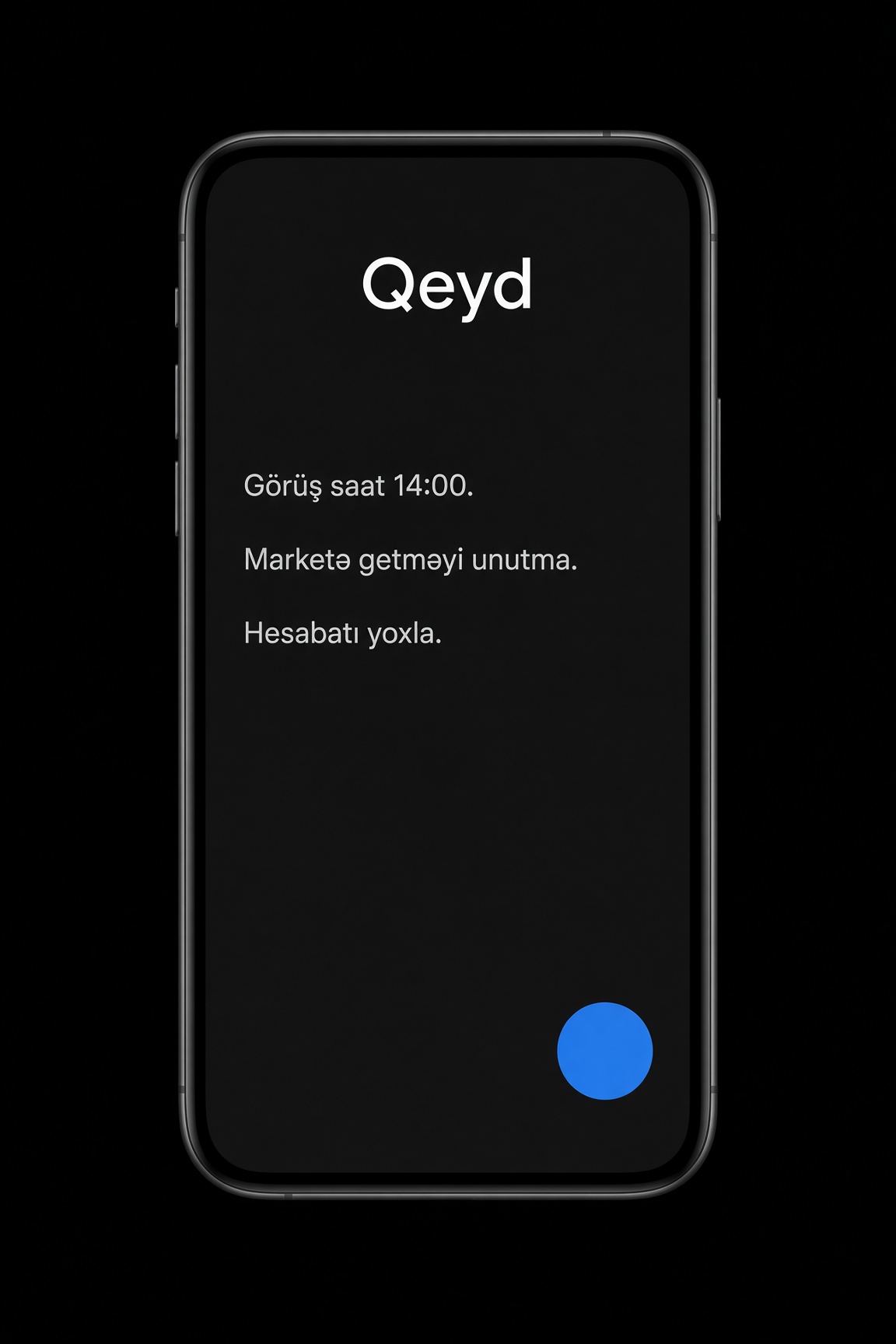
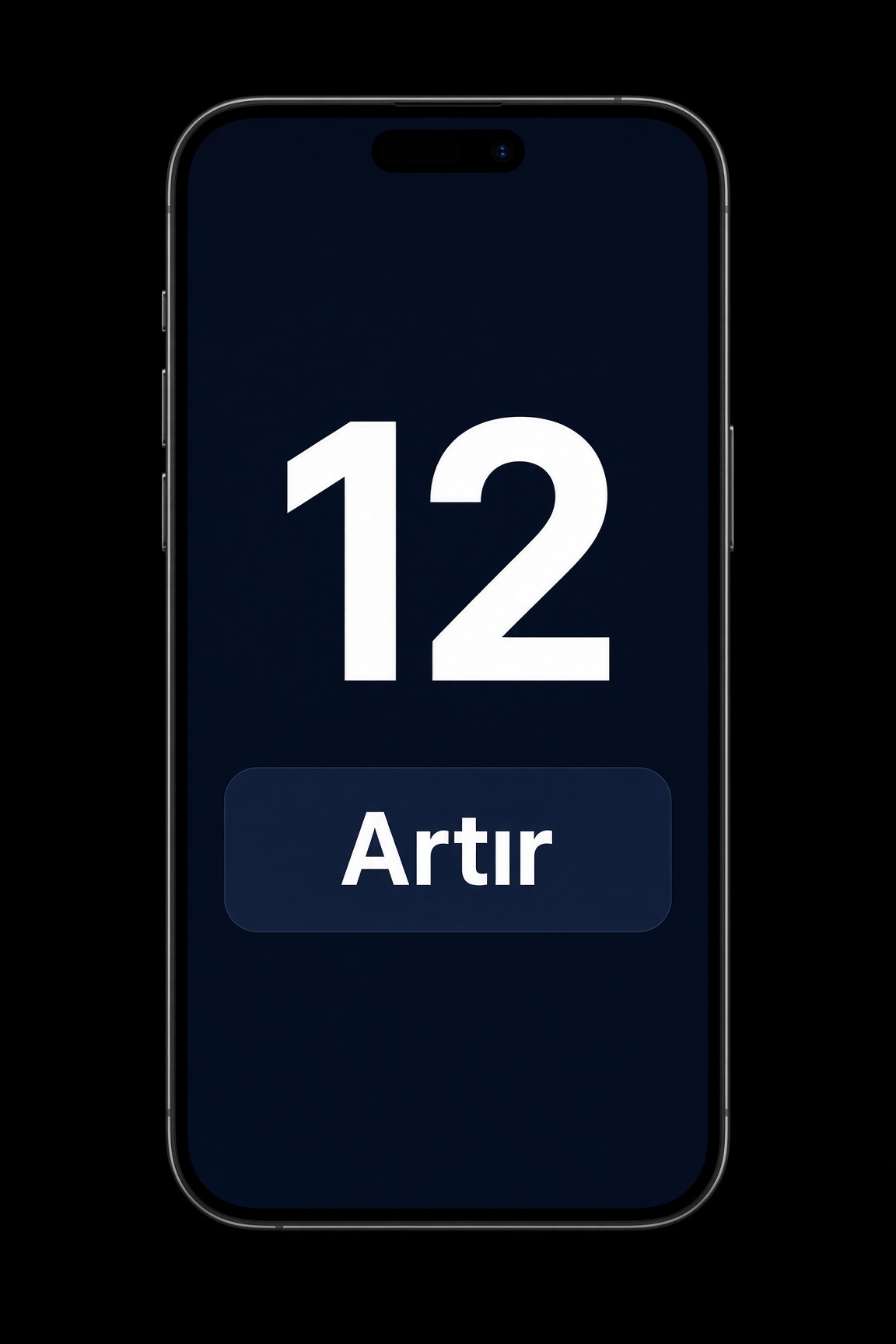
Samples on a black screen
Change the words
Ready app files
index.html stands at the root of this zip. The css and js folders sit beside it. You can give it to Studio as it is.
Choose your own zip
Nibras Studio opens by itself as soon as you choose the zip.